
Release 51
Author Release 51
6 min read
2026/03/03
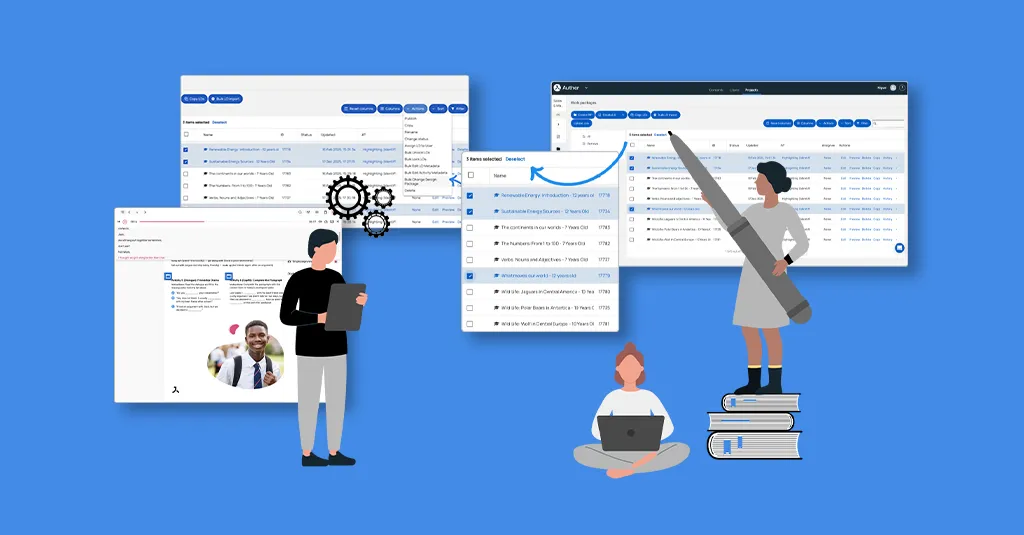
Avallain Author Release 51: Greater Efficiency, Smarter Workflows and Enhanced Accessibility.
Backend
Work Packages Screen
The Work Packages screen in Avallain Author Release 51 introduces practical improvements designed to streamline daily workflows.
Selection Counter
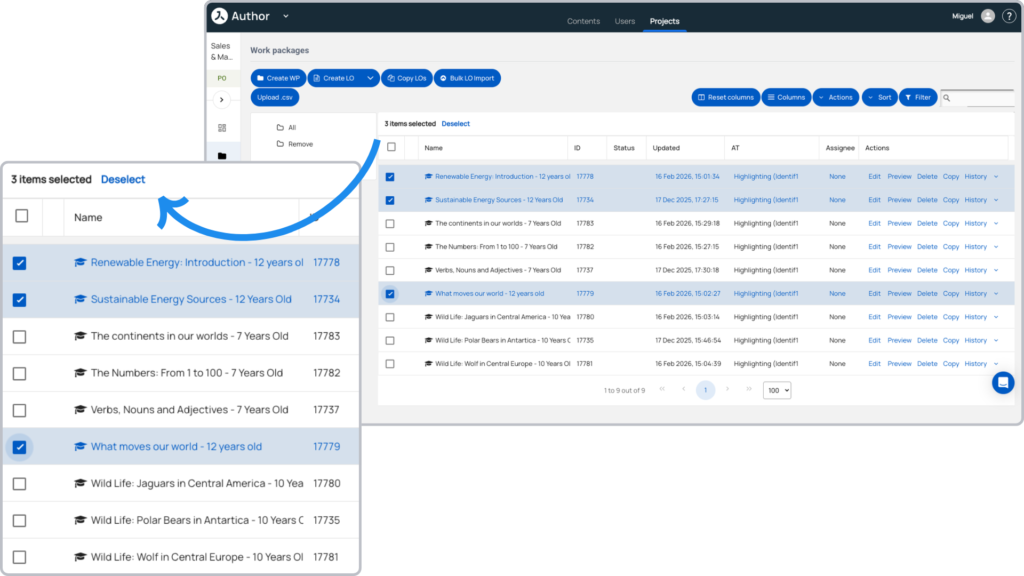
When selecting LOs on the Work Packages screen, a counter above the list clearly displays the number of selected LOs. You can select LOs from multiple Work Packages, making large-scale actions faster and more transparent.
Bulk Change Design Package
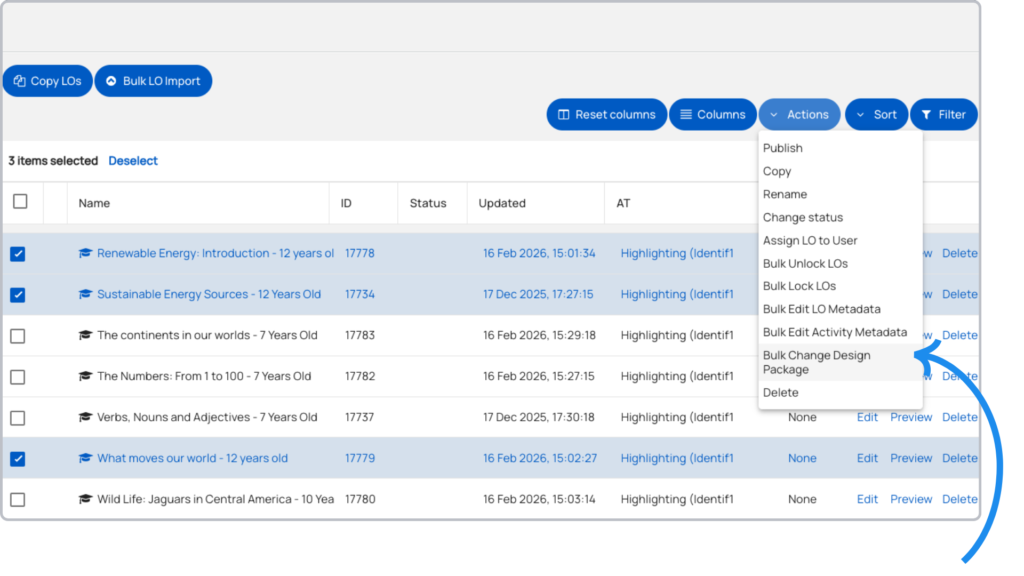
A powerful new action has been added to the Actions menu. It allows you to change the Design Package for a selection of LOs at the same time, significantly reducing repetitive manual work.
Note: If your selection contains both Digital Books and regular LOs, the action will be greyed out. If your selection contains only regular LOs, you will only be able to choose from regular Design Packages. If it contains only books, you will only be able to choose from book Design Packages.
Product Types
Tabbed Layout
The page for editing Product Types in Avallain Author Release 51 has been redesigned as a tabbed interface similar to Project Settings, providing a more structured and intuitive experience.
The familiar layout and placement of options and settings, combined with the reduced need for scrolling, improve the handling of Product Types and support more efficient configuration.
Layouts
In previous versions of Avallain Author, the layout selection widget/carousel used to assign layouts to Activity Types displayed a list of Design Packs as well as a list of layouts. This gave the impression that some layouts could be enabled or disabled depending on the selected Design Package.
However, layouts are referenced by name independently of the selected Design Package. In other words, if a layout called “layout_01b” has been selected for the Activity Type, that layout will be selected for all Design Packages that contain a layout with that name.
To simplify and accelerate the selection process, the new widget in Avallain Author Release 51 no longer includes a Design Package selector. Instead, the widget lists all unique layout names from all Design Packages enabled in the current project. Removing duplicated layout names from the selection considerably reduces the size of the list and speeds up the selection process, resulting in a cleaner and more efficient workflow.
Project Import
The Project Import functionality in Avallain Author can be used to create a project with the same settings and or LOs in the same or a different Author instance. Project Import was significantly improved in Avallain Author Release 50. Avallain Author Release 51 introduces further targeted enhancements.
- Project export and import now support structures – these were previously not included in the scope of the Project Import functionality, increasing consistency between projects.
- When attempting to import a project containing Media Library assets with duplicate names, the import will fail with an error message. Users must remove the duplicate assets in the source library and export and import again, ensuring greater asset integrity.
- Restrictions regarding the Activity Types available in the destination project have been eased. The destination project now only needs to include those Activity Types that are actually used in the LOs of the source project (rather than all the Activity Types listed in the Project Settings), providing greater flexibility during migration.
Project Settings
To avoid excessively long lists and improve usability, the Design Packages selector in the Design Packages tab has been converted into a widget similar to the one used for selecting project team members.
When launched, the widget contains two panels. The left panel shows the available Design Packages and the right panel lists the selected Design Packages. Select Design Packages and use the buttons between the two panels to move Design Packages from the full list to the selected list and vice versa (or drag and drop), enabling clearer overview and control.
To set the default Design Package, use the dropdown menu below the selection widget. This menu replaces the radio button previously used for the same purpose and offers a more consistent interaction pattern.
Reports
The Full Project Report in Avallain Author Release 51 has been enhanced with an additional column that lists the contents of the Supplements area, including any assets. Assets are also listed for each LO area such as Rubric, Content or Attachments. A complete list of assets in the LO remains available in a separate column.
This means that, in addition to the comprehensive list for the LO, you can now clearly see the location of the assets in each screen, supporting more precise review and quality assurance processes.
Supplements
Avallain Author Release 51 removes the Description field from supplement objects. It was never used to display information to the learner. This refinement contributes to a cleaner and more focused authoring interface.
Warning Dialogues
When attempting to delete a Product Type, Master Activity Type, Publishing Group, Design Package, Publishing Type, Setting or Option, Avallain Author previously used a browser alert dialogue.
Such dialogues are not very accessible and some browsers allow users to block them altogether. To ensure that all users can confirm the deletion of an element in Avallain Author, these browser dialogues have been replaced with a standard Avallain Author notification dialogue, improving accessibility and reliability.
Digital Books
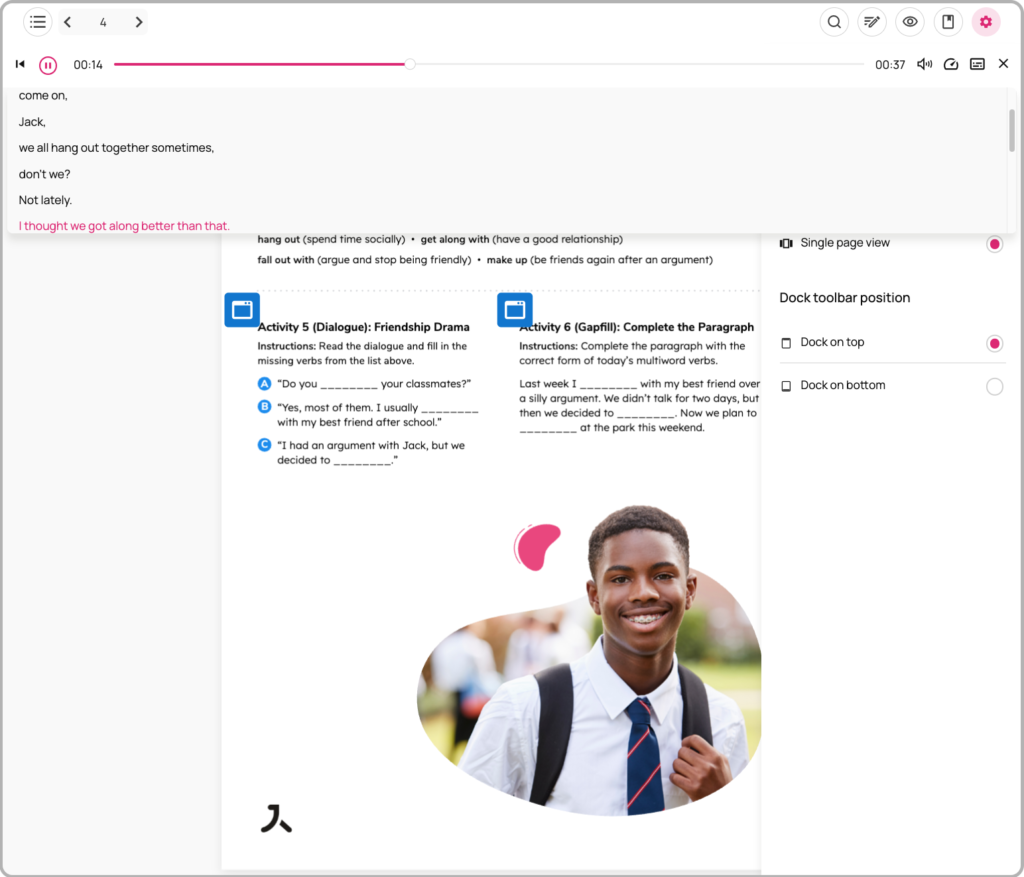
Avallain Author Release 51 delivers further accessibility improvements for Digital Books, including support for transcripts when using audio hotspots in toolbar mode and improved support for the Arabic user interface.
Support for printing page annotations has also been added, extending the practical usability of Digital Books.
Options
Check Answers Display: None
The new option value None for Check Answers Display allows content creators to prevent any feedback from being given to the learner. Validation takes place after the learner clicks Check Answers, but answers are not marked as correct, incorrect or missing and no scoring information is shown.
The new option value is implemented for 28 Activity Types. See the User Guide for a complete list.
Watch the webinar recording
Learn more about this release’s new features by watching the recording of the webinar held by our in-house experts.

Latest product releases
Explore more features recently added to our products.